
Import & export themes
TermZ ships light and dark themes, and a theme editor for building your own. Custom themes (and their keyword-highlighting) can be exported and imported as JSON, so you can back them up or share them.
Open the theme editor
Section titled “Open the theme editor”Settings → Appearance & Display → Customize themes… opens the theme editor. The active theme is chosen from the dropdown just above that button.
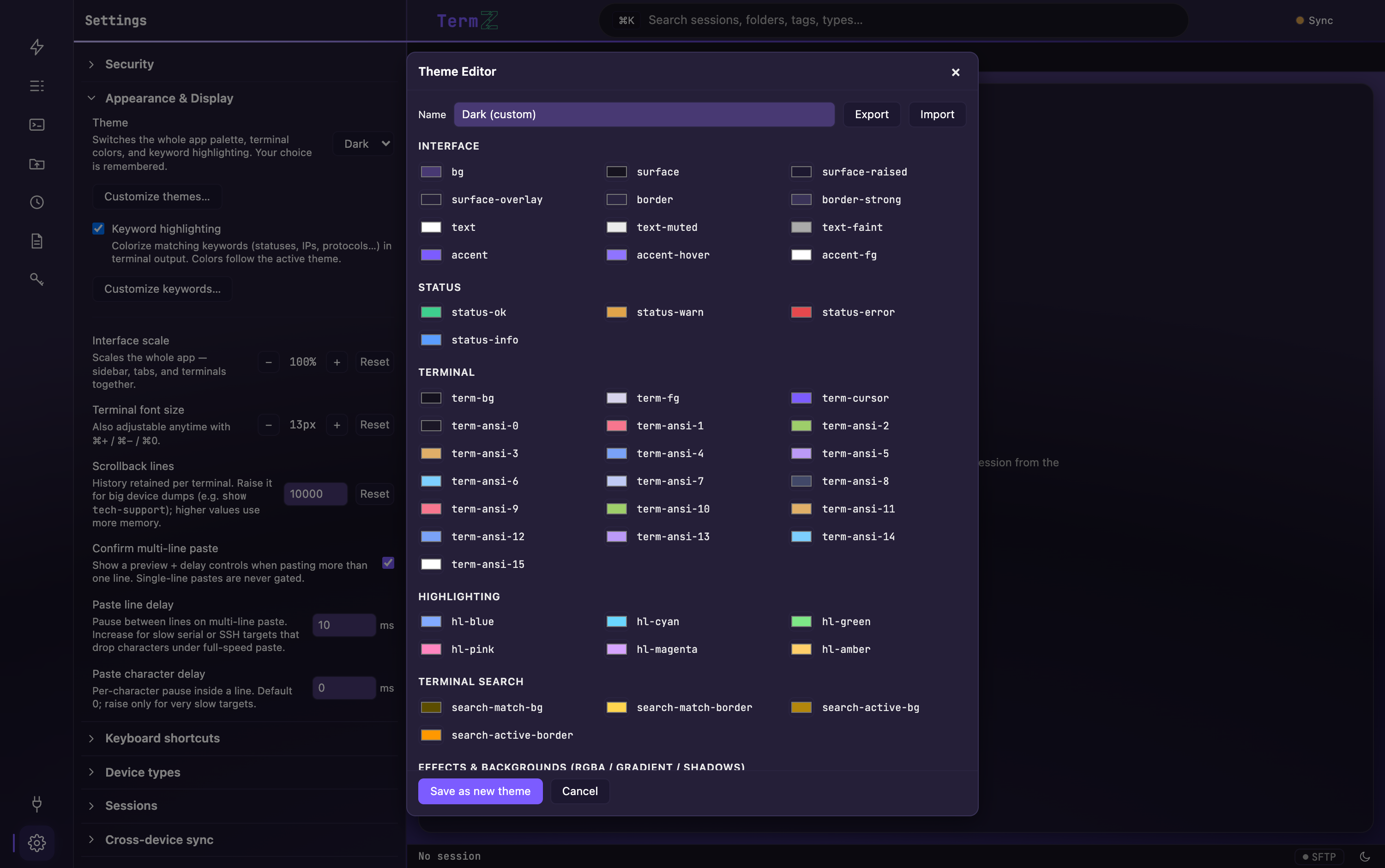
A theme is a set of ~60 tokens — UI surfaces, text, accent, status colors, the full 16-color ANSI palette, keyword-highlight colors, and effects — all retinted together.
Export a theme
Section titled “Export a theme”In the theme editor, click Export. TermZ copies a JSON bundle to your
clipboard. Paste it into a .json file to save or share it.
The bundle is:
{ "theme": { "id": "...", "name": "My Theme", "tokens": { /* colors */ } }, "highlight": { /* optional keyword-highlighting scheme */ }}Import a theme
Section titled “Import a theme”- In the theme editor, open the Import panel.
- Paste the theme JSON into the box.
- Click Import & apply.
TermZ accepts either a full bundle ({ theme, highlight }) or a bare theme object.
The imported theme is given a fresh id, so it never overwrites one you already
have, and it’s applied immediately. If the bundle carries a highlight scheme,
that’s imported as well.