
The TermZ window
TermZ has four main regions: the activity rail (far left), the sessions sidebar, the terminal area (tabs + panes), and the status bar along the bottom.
The activity rail
Section titled “The activity rail”The vertical rail on the far left switches between the app’s main views. From top to bottom:
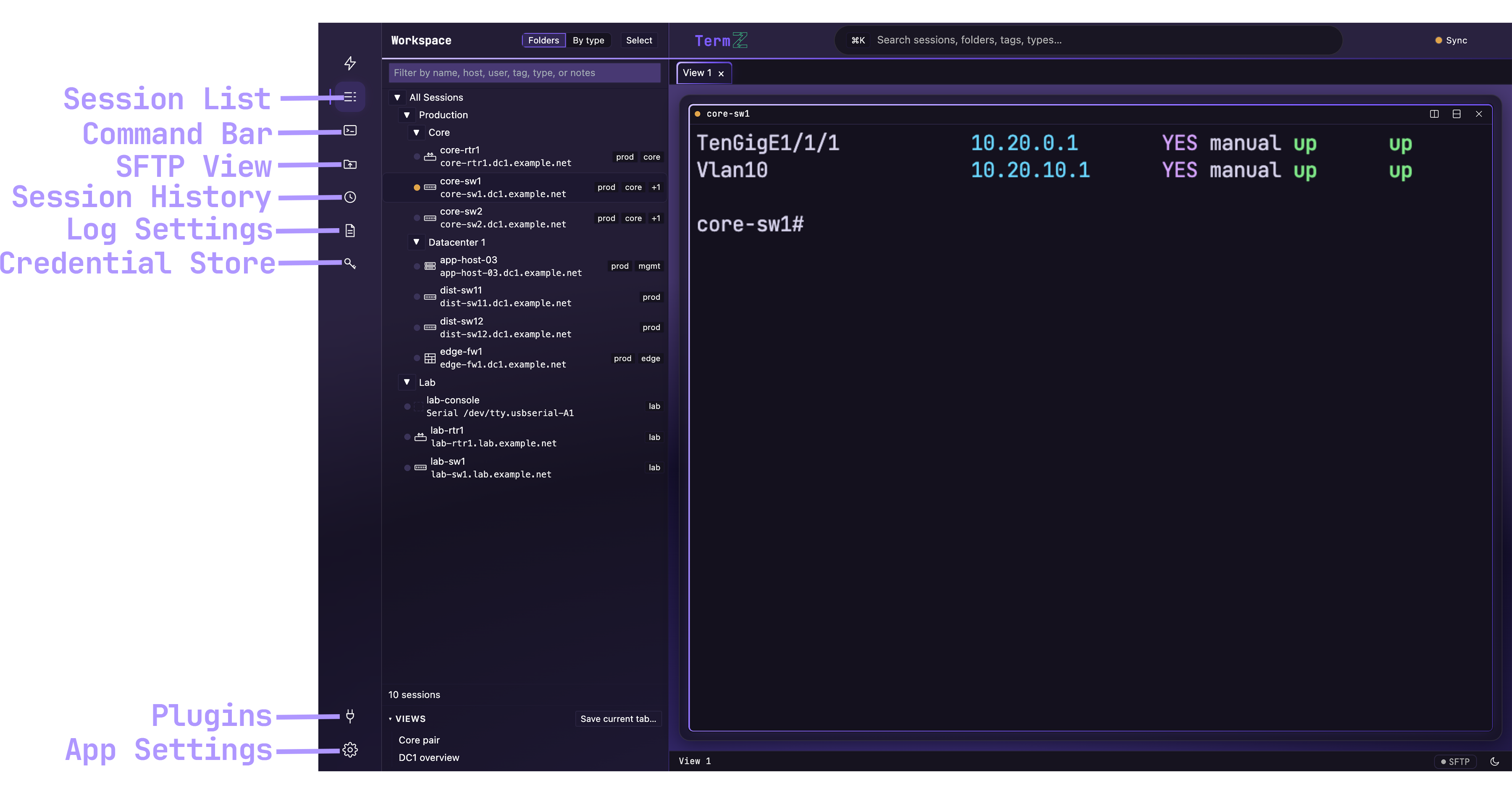
| Rail item | Opens | What it’s for |
|---|---|---|
| New session (lightning) | Connect dialog | Start a new SSH / Telnet / serial / raw TCP / local session. See Create a session. |
| Sessions (list) | Sessions sidebar | Your saved sessions, folders, tags, and types. See Organize sessions. |
| Command bar (prompt) | Quick switcher | Jump to any session/view/action; search. See Command bar & find. |
| File transfer (folder ⇄) | SFTP browser | Browse and move files over an SSH session. See SFTP. |
| History (clock) | History | Recent connections and activity. |
| Logs (document) | Log configs | Set up session logging and masking. |
| Credentials (key) | Credential vault | Manage named credentials and rotation. |
| Plugins (plug) | Plugin store | Browse/install plugins. |
| Settings (gear) | Settings | Sessions, security, appearance, sync, device types, shortcuts. |
Sessions sidebar
Section titled “Sessions sidebar”Next to the rail, the sidebar lists your saved sessions as a folder tree (or a by-type view). Filter by name/host/user/tag at the top, multi-select with the Select toggle for bulk actions like export, and open a session with a click. See Organize sessions.
Terminal area — tabs & panes
Section titled “Terminal area — tabs & panes”Sessions open as tabs, and any tab can be split into panes to watch several hosts side by side. A saved view restores a whole layout (which sessions are open and how panes are arranged) in one action.
Status bar
Section titled “Status bar”The bottom bar shows the active view and quick toggles (SFTP, theme). Most things are also reachable from the command bar (⌘/Ctrl+K) and keyboard shortcuts.